When first opening DigiChain, it is best to set the target audio configuration before importing any samples into the list.
By default, the app will be ready to export for the Digitakt (48kHz 16bit Mono) – to change this – click the text that reads that information to open the audio configuration panel.

You will then see the audio configuration options.
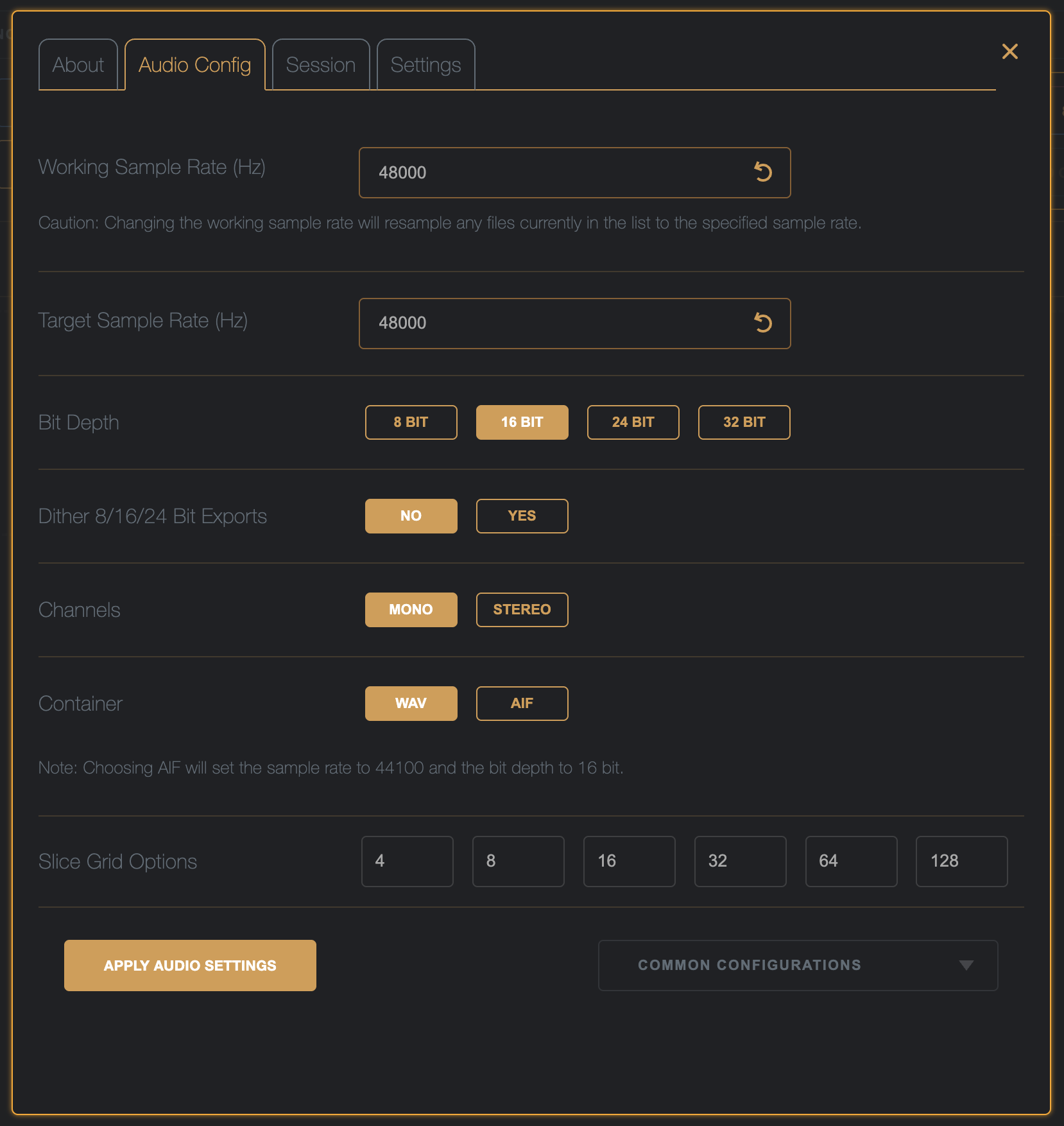
The ‘Working Sample Rate’ is the sample rate that the internal processing of DigiChain will happen at – all internal processing is done at 32bit, only the sample rate can be customized.
‘Target Sample Rate’ is the sample rate that exported audio files from DigiChain will be saved as.
‘Bit Depth’ is the bit depth that the exported audiofiles from DigiChain will be saved as – note that when rendering directly to the top of the list instead of out to audio files, this setting will only apply when creating 8 bit files (where we assume the user wants to hear the re-sample artifacts).
‘Dither’, when turned on TPDF (Triangular Probability Density Function) noise will be introduced at the end stage bit depth conversion from 32bit to the target bit depth – this helps to reduce quantization errors that may occur when reducing bit depths.
‘Channels’ toggle between outputting stereo or mono files, when choosing to export mono files – you may choose per sample how a stereo file will be mixed down in the sample list by taking the Left or Right channel only, summing the channels, or by subtracting to get the difference (side processing).
‘Container’ this is the export container, in most cases you will want to use wav files, exporting as aif will limit the choice of bit depth to 16 bit, dithering can still be applied to aif exports.
‘Slice Grid Options’ the numbers specified here will be the numbers shown in the grid buttons on the main screen to choose the chain length preferences.
‘Common Configurations’ – this dropdown list offers quick selection for common devices capable of sample chain playback, some of these options will toggle setting in the ‘Settings’ tab such as exporting .ot metadata files alongside the audio file, or putting the UI in or out of XY or Spaced Chains mode.
 brianbar.net